How I Use E-Ink for Non-Fiction Writing: Reading, Research, & Note-taking
In a previous post I go into the digital and analog gap that comes with our contemporary and integrated lives. This post will go more in-depth in how I use E-ink for non-fiction writing. Non-fiction writing often requires reading, research, and note-taking. This is personally how I go through the process as a humanities based writer and researcher. As said in another post, I think it is much more important to discuss how we use technology and not just reciting its “specs.” With that said, some E-ink notebooks and readers are better for some people than others. This is just what I personally use and will note why I suggest some over others. Nonetheless, lets start where the magic usually begins: Reading.
Reading is Writing
Reading is something I do basically every day, whether for my own personal research, for my seminar classes, for this blog, or for fun. My first preference is actually paper books. The technology of print books is unmatched and cannot be adequately replicated in the digital world. Besides this, I have two primary E-ink readers I like to use. My Kindle Paperwhite ( PW, 10th gen—modded) and my Onyx Boox Note Air 3C (NA3C). My Kindle PW is perfect for leisure or night reading, it has great battery, and can dual-boot KoReader with the native OS. It is durable and reliable for academics since unfortunately, Kindle has a monopoly on eBooks. My university has access to a decent number of PDF eBooks that I sync in Zotero. For these, I use my NA3C since I can go into the Zotero app and read and highlight in the app. This has saved me money in more ways than one, and means I get a copy I can actually annotate, unlike library loans. Below is my preference of type of reading material and then what I use to take notes on that reading.
- Physical book I own and pencil
- Physical Library book loan and my SuperNote Nomad
- Ebook PDF on NA3C in Zotero App
- Ebook Kindle/Epub on NA3C in Kindle App
- Ebook Kindle/Epub on Kindle PW
- My laptop with Zotero or Kindle Web browser (absolutely if I must)
Notetaking is Writing
“Notetaking is writing.”1 The best notes are really the ones that engage the text, active reading is writing too, in a way. And that is all thanks to having a pencil in hand. When I read, I try to mark and engage the text as much as possible. I have troubleshooted many different ways to do it, but the best way is choosing the more reliable path. For instance, the NA3C has the option to sync with your Zotero library, where you can download the PDF, mark it up in the native app called NeoReader, and then send it back out. Unfortunately, it has some hiccups for me that I do not like dealing with. So, I now just use the official Zotero app on the NA3C and use the “handwrite to text” feature instead of the on-screen keyboard. I still get to write by hand my notes and get to search those annotations in Zotero. This is my simple and reliable path. This may not work for monochrome E-ink displays due to the Zotero app not telling you what color it is you are using, which is important to how I work.2
Reading Notes
Another reliable way to take notes, especially when reading, is to keep these reading notes in a separate place. For me, that means using the SuperNote Nomad to create a note file for just that book. This could also just be done on analogue paper. I believe this is the most engaged way to take notes on a book, especially a physical book you are borrowing and cannot mark. I write out important quotes, summarize points, and paraphrase. All the while I note the page number (or chapter/section if an Epub). I always felt the most prepared in my seminar classes when I do this.
Lecture Notes
When taking notes for lecture based classes, they are most useful to me as E-ink notebooks. There are two reasons for this. One, if the class is interesting, I want to reference these notes anywhere I am. Two, I don’t have space to physically keep these notes, nor do I want to deal with my notes not looking how I want them too.3 Various E-ink operating systems deal with exporting notebooks differently. The best one for me is SuperNote. The reason is because I can manually create a table of contents with internal links being preserved upon export. Boox does not do this, instead you can manually create a table of contents with its outline feature, but any internal links in the document is not preserved.4 You can of course do this for reading notes too. 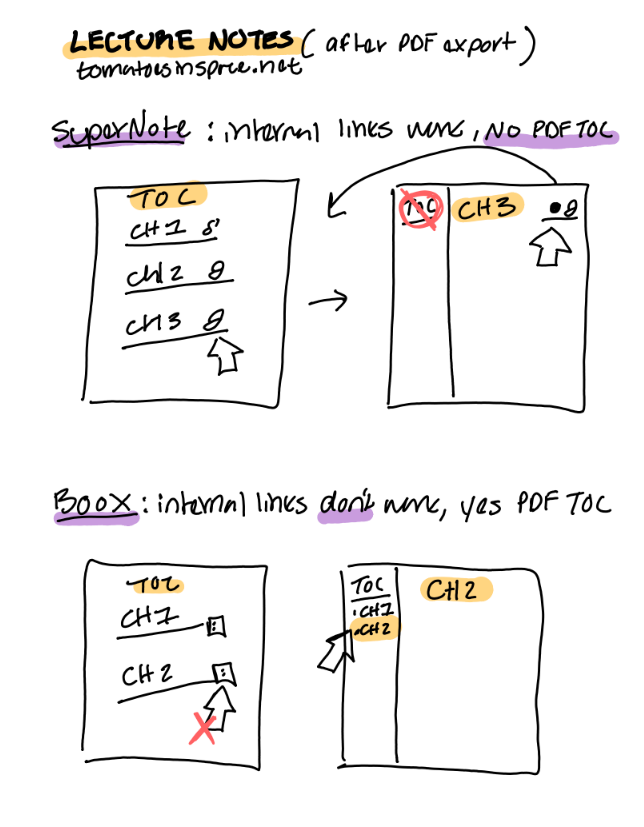
Research is Writing
These methods of note-taking, one where you are gathering information from readings or from lecture can become further useful in the advent of research. I do this by using the tag #ZK , #RS, and #LR. #LR stands for Literature Review, #RS stands for Research, and #ZK stands for Zettlekasten. I do this for any notes I take, on an e-ink device or in paper notebooks. They mean I must take some sort of action in relation to the note.
Literature Review (#LR) means that what I have paraphrased or written in my summary, can be used in a draft of a literature review. Research (#RS) means I need to do further research in relation to the note. Then, Zettlekasten (#ZK), means that there is an idea I want to put in my ZK system. The Zettlekasten system is where you link atomic, singular, notes together. You make these notes from the sources that inspire you to break down their arguments into useful singular ideas you can then remix for your own benefit. I will admit that this is a very involved process for coming up with unique thesis ideas and connections, but I enjoy it as a hobby and as a way to make sure particular ideas basic to me and my research are documented and elaborated on. When doing non-fiction writing, a lot of what we write requires citation and honoring others for their contribution into the world while you make your own. That is why I really enjoy the ZK system for research. While I do not go through the process often, the philosophy of it, fundamentally informs how I do research. Here is a zine I made last year explaining what a ZK is. Click here to print and fold!
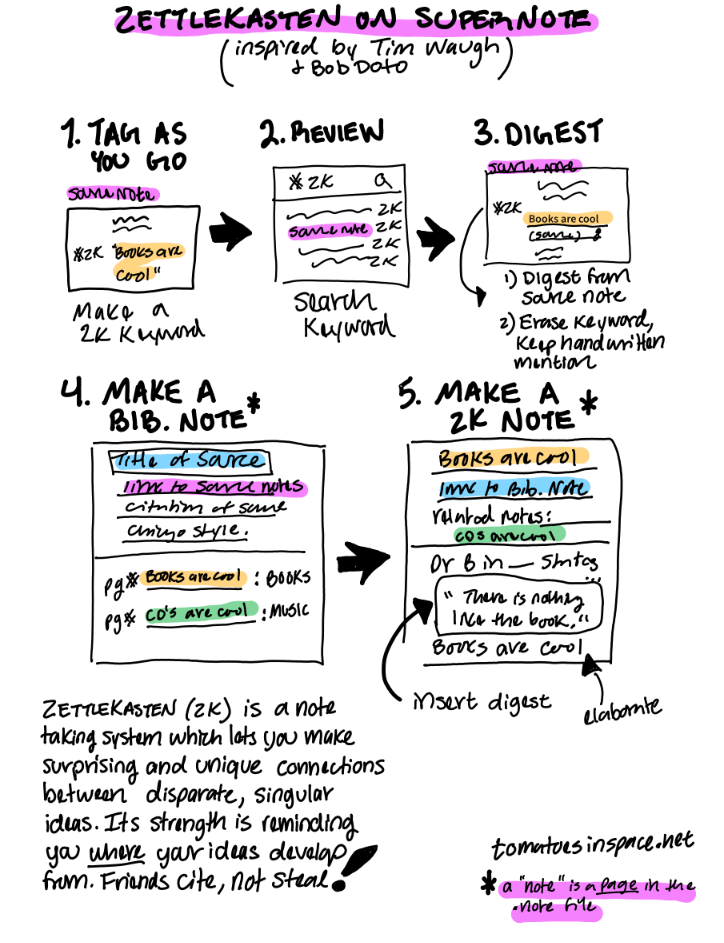
I am currently experimenting with creating and using a handwritten ZK system on the Nomad, and recommend Bob Doto’s A System for Writing for absolute beginners to the ZK system. If you have a Supernote device, Tim Waugh’s “Slipstream” Zettlekasten Supernote framework, is a good start for intermediate ZK users.5 Below is an illustration of how I use both Doto and Waugh together in the Supernote OS. The ZK can help write non-fiction work, or come up with new ideas, it cannot write for you.6
-
Create a Source Note. The Supernote is not meant to replace your computer, its like magic paper. This source note is the next best “authority” on the source itself. It is your ground “zero” in the Supernote system. Make sure to note what kind of source it is in your note and how you accessed it in the first place. Now, handwrite out passages, quotes, and summarize what you can from the source. You can even type it out from a previous list of notes you made elsewhere. Add page numbers/markers/timestamps/etc! As you go, make a keyword or “tag,” like #ZK to note which quotes or ideas you want to put into your ZK system.7 Lasso the #ZK, and insert the keyword to the page for later. This is but one way to flag what can be known as a “fleeting note,” which is a note that captures some idea you want to make an action on. Don’t erase that #ZK you’ve written by hand! Keep it so then you know when looking back on these notes, you wanted to or had, put this in your ZK.
-
Review your Notes. Once done taking notes on your source, you can global search your #ZK keyword. This essentially collects all of the #ZK fleeting notes you made. Select a source note that has the keyword and process what is on the page.
-
Create a Digest. Supernote has a quote collecting application called “Digest” and what it does is link the text to a source, but also allows you to insert that text in any note you see fit. See why having a source note is important? By doing this process, you can streamline the use of the Digest app.8 Make sure to include that actual sources page number, timestamp, etc. in the quote itself! This is key!! You can get rid of the keyword, but not the handwritten indicator! 3a. You can use the categories in Digest to assign what kind of phase this quote is in such as “sleeping” where you don’t know what to do with it, but wanted to digest it anyway9, or “fleeting” if you use Digest for other things besides for ZK. Also, you can’t edit these digests once they’re made besides who the author was, what category it is in, and any “expanded” notes made. So make sure the page number, the quote itself, and even the spacing is to your liking and accurate.
-
Create a Bibliographic/Literature Note. In a note file (real-time recognition), you will make an “entry” by adding a page where you specify: the title of the source, link to the source notes, and a proper Bibliographic citation in whatever style you use most. Then you record every instance you have clipped a quote from this source to make a main ZK note, make sure to link to those instances as well! You can style it like this: Pg # (title of ZK note) : keyword.10 Make sure the title of the ZK note is unique and a single idea. Lasso the unique title, create a link, then go to the note file where your ZK notes live and add a new entry.
-
Create a ZK Note. In a note file (real-time recognition), make an “entry” by adding a page where you specify: ZK note title (that is unique and signifies one idea), a link to the Bib. note, and then any additional links to other notes that relate to the note you just made (this is optional, but encouraged of course as your system grows).11 Doto is right in assigning each note an alphanumeric address. You can buy Tim Waugh’s system template if you’d like a visual representation. I suggest using both if on Supernote. Now you can insert the digest you just made into the ZK note, contextualize the quote, and elaborate on what it means for the idea that is the title of this ZK note.
Congrats! You did it, you made a ZK note! I suggest using the Bib. note to understand which sources are the most important to you (indicated by the number of entries) and browse the source notes you took. Do the same in the main ZK note file. Browse the links you made, especially the digests.
What Makes the Digest app special?
- You can reference the digested quote and use it in any number of entries, and always have a link to the source note.
- You can browse digests made (on the tablet or in the SN Partner app) and think up other ways the quote relates to other ideas.
- You can note which ZK notes use that quote specifically by providing the alphanumeric number and the title of that note in the text or handwriting annotations of that particular quote in Digest.
What would make the Digest app better?
- If you could edit the source of “manual entries” for easier use of digests.
- If you could take snapshots of text.
- If you can add to the annotations in the SN Partner app without using the tablet.
- If you could see which page that digest was used in, allowing us to the see the relationship between digests and the “headers” they are under.
- back-linking
So, that is my in-the-works process in how I do non-fiction writing. I primarily use whatever I write by hand to inform the final product, and the system I use to keep all those citations together is really a matter of how much time I have. The ZK Supernote system is just an experiment, I typically use Zotero, Supernote, and Kindle, to access my annotations and notes to then start mapping out and writing my work on the NA3C or SN Nomad. It’s all about experimentation!
-
Bob Doto, A System for Writing: How an Unconventional Approach to Note-Making Can Help You Capture Ideas, Think Wildly, and Write Constantly–A Zettlekasten Primer, 29. (Kindle) ↩︎
-
I can do a mini post on my annotation system in the future. ↩︎
-
Although, it is much worse when a file becomes “corrupted” because of a new update. Instead it is better to automate secure backups and to be aware when your device has a new update available and manually installing the update so then you have a chance to backup your notes. I experienced this specifically with Boox, where my notes would “duplicate” and “perfect” my strokes to look like square, etch-a-sketch renderings. It sucked!! ↩︎
-
I believe Ratta (the company that makes SuperNote) are developing a way to export the headings as a TOC. This is not possible as of writing, but will be such a game changer in how digital notebooks are made and persist as PDF’s. ↩︎
-
A quick note for more experienced users: Slipstream is good for its templates and Waugh’s interest in making it better. My current issue is that it is not beginner friendly, I believe it has some phrasing which can trip up beginners in how ZK can work for them. Such as emphasizing “fleeting notes” and not at all mentioning source/bibliographic notes. Or even neglecting the Digests function all together! How I detail my use of both is conscious of these missing elements. With that said, buy Doto’s book, then figure out what is the best method for you. Because I read Doto’s book and a few other authorities on the matter of note-taking and research, I knew how to change Slipstream to better fit my needs. I’ve detailed my use case for others benefit. ↩︎
-
Bob Doto, A System for Writing, 138-139. (Kindle) ↩︎
-
The tagging idea comes from Bob Doto (49, Kindle). The process of handwriting quotes, then selecting which ones you want to use for ZK by using the “digest feature” (which takes some fixing up the text), is a filtering system that stops you from just “capturing” all the quotes all the time. I think this is a good, slow process, that makes you really consider which ideas are most important for you to capture now. Re-reading and revisiting notes and their sources, are an excellent way to review your change of thoughts over time. ↩︎
-
I suggest this because while you can take Digests from documents, I personally do not read on the Supernote as it is not a great reading experience. I believe in that filtration process that comes with the friction of handwriting quotes out from the source itself. ↩︎
-
Bob Doto, A System for Writing, 27, 29. (Kindle) ↩︎
-
Doto, A System for Writing, 33. (Kindle) ↩︎
-
Tim Waugh, Slipstream v1.2, 8-11. ↩︎